
Less searching. A little more breathing room.
How Moji works
Your screenshots, easier to find. Your folders, still yours.
- 01
Choose a folder
Start with the screenshots and files you want Moji to help with.
- 02
Find a little clarity
Search by what you remember, or preview clearer names and folders.
- 03
You have the final say
Check the changes you want. Only approved files move.
A tidy folder. Still your folder.
Every change.
Yours to approve.
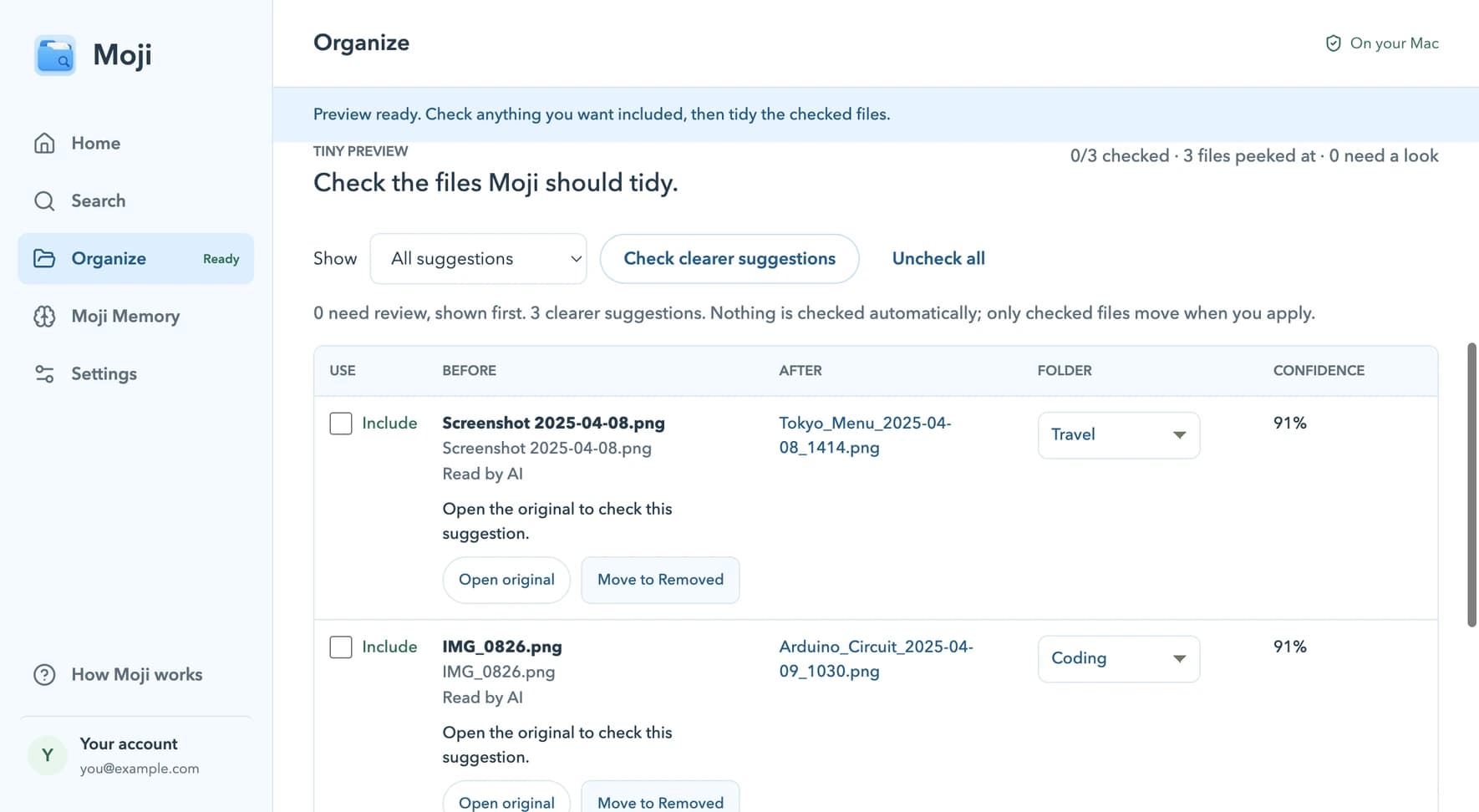
Moji suggests meaningful names and places for your files. Open an original, adjust a suggestion, or leave it exactly where it is.
- Preview before anything moves
- Check only the files you want
- Undo your last cleanup

A calmer corner of your Mac
Make room for finding things.
Moji is getting ready to meet your screenshot folder.
Get Moji for MacThe first signed download will appear here when it's ready.